Start here
Getting started
Your account, your first upload and how to read the first report.
This guide takes you from an account to your first assessment in about ten minutes.
Your account#
Every account opens on a 14-day trial of Professional. You can compare the plans at any time.
Your first upload#
Export from P6
Schedule the project in P6 (F9) against the right data date, then export it as XER or P6 XML. Exporting from P6 explains each option and the common mistakes.
Drop the file in
Drag the file onto the upload panel, or click it to browse. Files up to 400 MB are accepted. A 2,786-activity, 34 MB export parses in about 4–6 seconds.
Read the diagnostics first
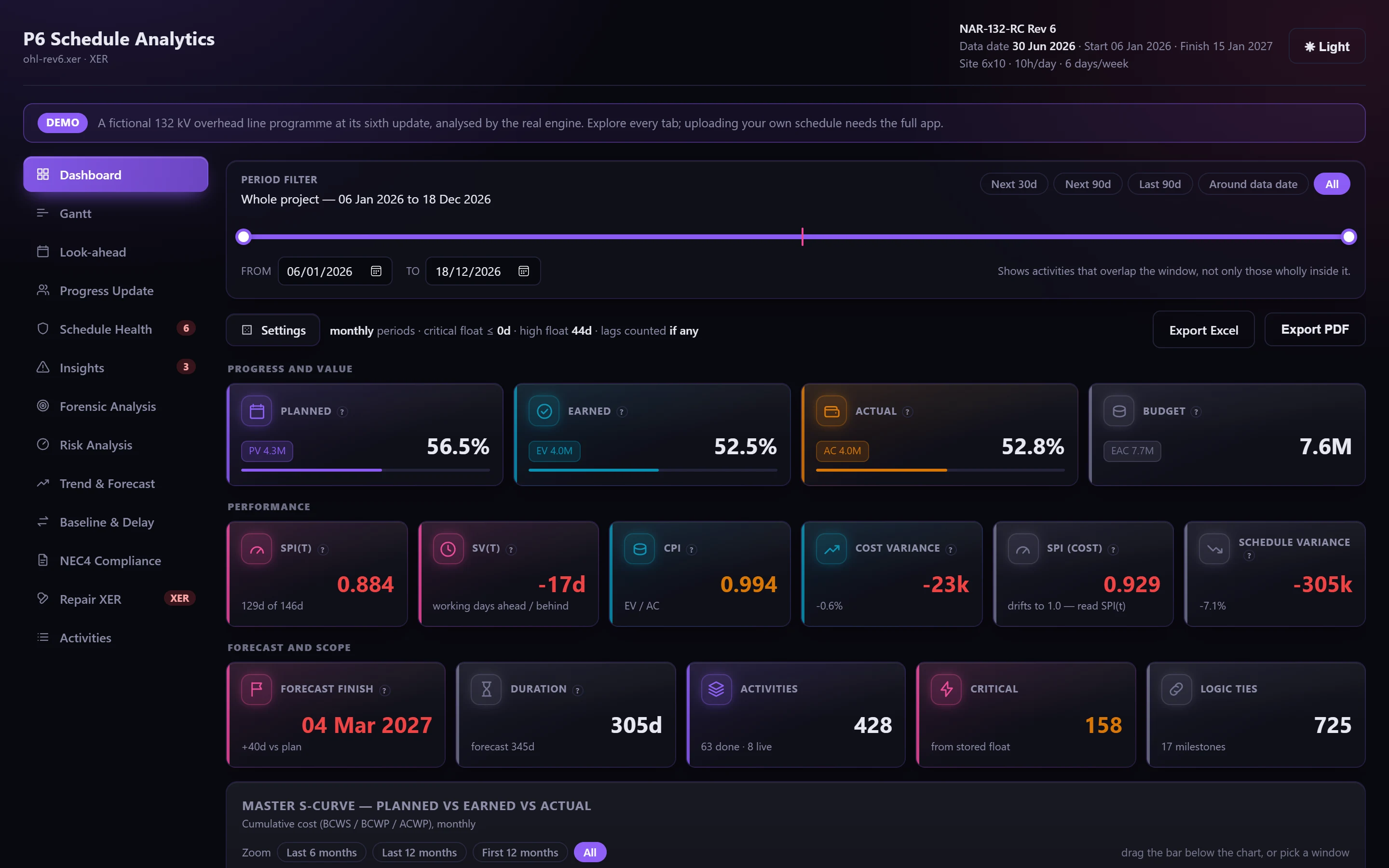
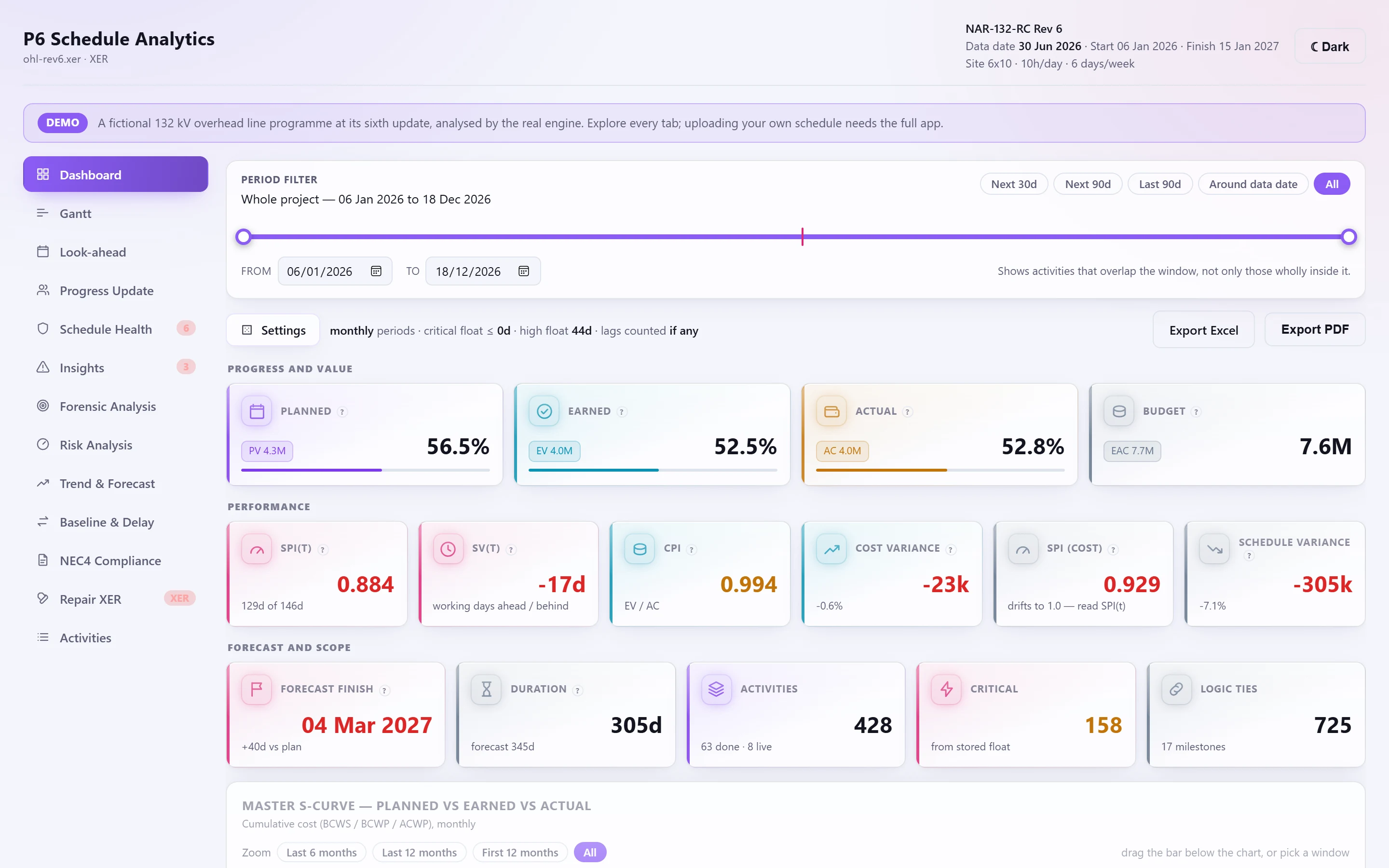
The dashboard opens with any data-quality findings at the top: a file that wasn't rescheduled, cost taken from resource assignments, or a programme with no cost at all. They frame every figure below them, so read them before anything else.
Open Schedule Health
The 14 DCMA checks, each with its result, threshold and a gauge. Open a failed check to see the activities behind it.
Reading your first report#
Start with three questions, in this order.
Is the file sound? Check the diagnostics, then Invalid dates and the critical path test. If the file wasn't rescheduled or the path is broken, the other figures describe a plan that no longer exists.
Is the logic sound? Logic, Leads, Lags, Hard constraints and the logic findings in Insights. These are defects you can fix, and Repair XER can fix several of them.
Is the job on track? Negative float, CPLI, BEI, and SPI(t) on the dashboard. These describe the programme's performance. They aren't defects: they need recovery or a notice, not an edit.
Adding updates and a baseline#
Open Trend & Forecast, Baseline & Delay or Forensic Analysis and add further files to the same session. They're sorted by data date, whatever order you load them in. See Trend and delay.